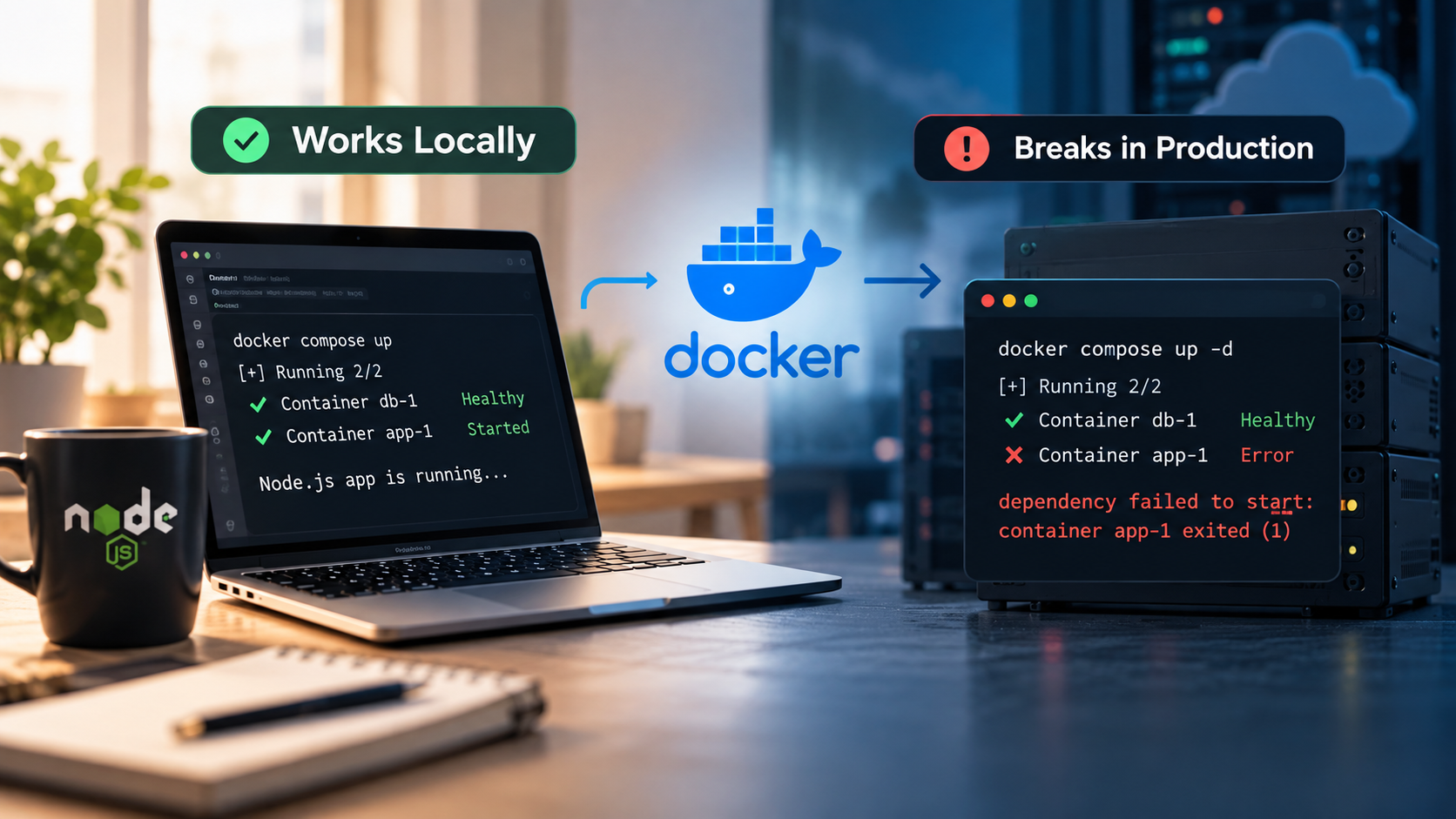
Deploying a Node.js App with Docker: Why It Worked Locally and Broke in Production
A Node.js application ran fine in Docker on my machine. After I deployed it, two things broke: configuration the app expected wasn’t there, and one service couldn’t reach another. I hadn’t noticed either problem during local development.
The application logic was the same. The environment around it wasn’t, and local development had been quietly covering for assumptions I didn’t know I was making.
This article walks through the mechanism behind both failures, how to confirm each one, and how to catch them before the next deployment. The examples use generic names and simplified output. They’re teaching demos, not logs from a real deployment.
A typical Docker Compose failure can look like this:
developer@linux:~/project$ docker compose up -d --wait

[+] Running 2/2
 ✔ Container db-1   Healthy
 ✘ Container app-1  Error

dependency failed to start: container app-1 exited (1)
SS-01: representative example with generic names. Exact wording varies by Compose version.
Both problems below can end like this. The logs are where they differ.
Why local Docker can hide these problem
When everything runs on your own machine, a lot is handled for you. A .env file sits in the project folder and gets loaded on startup. The service you’re testing against answers at localhost. Nothing about that is wrong locally.
The catch is that these are assumptions about the environment, not properties of the application, and production doesn’t guarantee any of them. Once the app is a container, its whole world is the configuration it was given at runtime and the network it was attached to.
Problem 1: Configuration the container never received
Symptom. The app exits during startup, or starts and misbehaves, because a value it expects is missing. A representative example:
developer@linux:~/project$ docker compose logs app

app-1  | Error: Missing required environment variable: DATABASE_URL
app-1  |     at loadConfig (/app/src/config.js:8:11)
SS-02: representative example. If the app doesn’t validate its config, the same problem shows up later as undefined in a connection string or a failed API call.
Why. A common Node.js setup loads configuration from a .env file using a package like dotenv. That works locally because the file is sitting in your project directory. It’s usually excluded from the image via .dockerignore, and it should be, because anything copied into an image travels with it. So the container starts without the file, and unless something supplies the same variables at runtime, the app is missing configuration it assumed would always exist.
ARG and ENV are easy to mix up here. Build arguments aren’t present in containers unless you explicitly pass them into the image, while environment variables persist in containers created from the image. In practice, ARG is for build-time values, and ENV is for non-sensitive runtime defaults that can be overridden when the container starts. Docker’s documentation warns that neither is appropriate for secrets, because they’re exposed in the final image. docker
How to verify. Check what the running container actually received, not what you think you configured:
docker compose exec app envIf the container exits too quickly for that, run a fresh one with the entrypoint replaced:
docker compose run --rm --entrypoint env appdocker compose config prints the resolved configuration, which helps when the mistake is in how variables are interpolated in the Compose file. These commands print values, so don’t paste their output publicly. docker
Fix. Supply the values at runtime from the environment the container runs in, not from a file that only exists on your laptop. In Compose that can be an environment: entry or an env_file: that exists on the deploy target. For sensitive values, use your platform’s secret mechanism rather than baking them into the image.
Prevention. Make the app fail early and clearly. Validate required variables at startup and name the missing one, so the failure reads like SS-02 instead of an undefined surfacing three calls later. Compose can enforce this too: the ${VAR:?error} form stops with an error when the variable is unset or empty, whereas an unresolved variable otherwise produces only a warning and an empty string. docker
Problem 2: localhost inside a container is the container
Symptom. The app can’t connect to another service it depends on:
developer@linux:~/project$ docker compose logs app

app-1  | Error: connect ECONNREFUSED 127.0.0.1:5432
Representative example. Port 5432 is just a familiar database default used for demonstration; the same failure shape appears for any service.
The 127.0.0.1 is the giveaway. The app tried to connect to itself.
Why. Each container has its own network namespace, so inside a container localhost means that container. It doesn’t mean the host machine, and it doesn’t mean the container next to it. Compose attaches the services of a project to a shared network, and each service can be reached from the others through its service name. docker
That leads to three points worth keeping separate:
- Same Compose network. When the other service runs in the same Compose project, the app should use its service name, such as
db, instead oflocalhost. - Container port vs. published port. Service-to-service traffic uses the container’s port, while a published host port only matters for connections coming from outside the network. With
ports: "8001:5432"ondb, your host connects tolocalhost:8001, but the app container connects todb:5432. oreil - External or managed databases. A service that lives outside your Compose project has no Compose service name. Use the hostname its provider gives you, and check that the deployment environment is allowed to reach it.
Here’s the difference side by side:
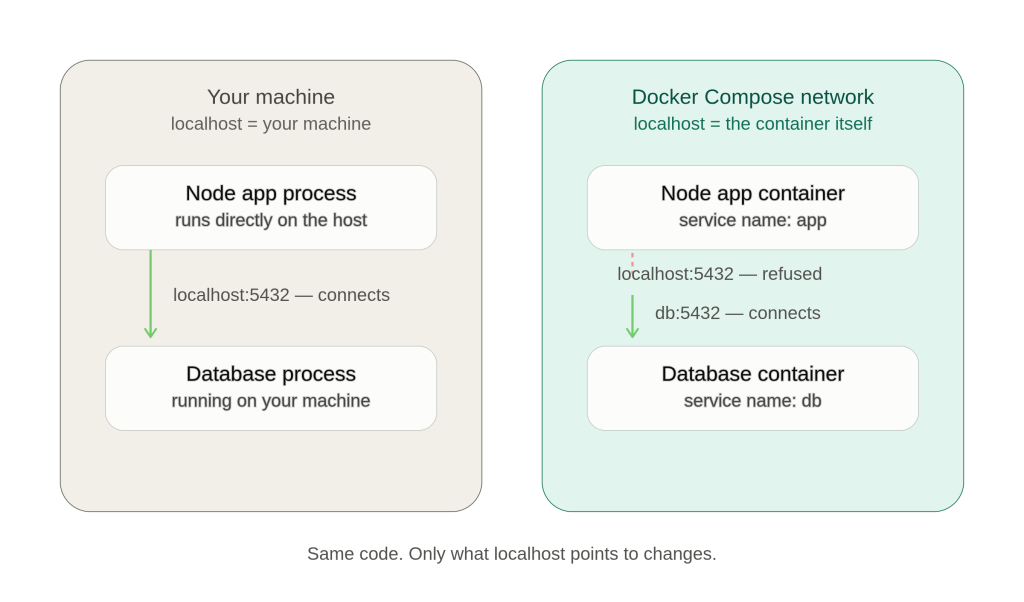
SS-03: the engine and port are demo values.
How to verify. Ask the app container’s own resolver whether the service name resolves:
docker compose exec app node -e "require('dns').lookup('db', console.log)"An address in the result means the name resolves from inside the container. An ENOTFOUND error means the containers aren’t on the same network, or the service name isn’t what you typed. If the container keeps crashing, docker compose run --rm --entrypoint node app -e "..." does the same check in a fresh one. A resolving name only proves the network path exists. It doesn’t prove the service is ready to accept connections, which is the next section.
Fix. Point the app at the service name and the container port, and read that value from configuration instead of hardcoding it. A simplified corrected setup:
# Simplified demo. Postgres is used only as a familiar example.
services:
  app:
    build: .
    environment:
      # format: postgres://<user>:<password>@db:5432/<database>
      DATABASE_URL: ${DATABASE_URL:?DATABASE_URL must be set}
    depends_on:
      db:
        condition: service_healthy

  db:
    image: postgres
    # ... database settings omitted ...
    healthcheck:
      test: ["CMD-SHELL", "pg_isready -U $${POSTGRES_USER}"]
      interval: 10s
      retries: 5
developer@linux:~/project$ docker compose up -d --wait
[+] Running 2/2
✔ Container db-1 Healthy
✔ Container app-1 StartedSS-04: representative corrected configuration and startup.
Prevention. Treat hostnames as configuration, not application logic. When the connection string comes from an environment variable, the same code runs against a Compose service locally, a Compose service in production, or an external managed database, and nothing in the code has to change.
Startup order isn’t readiness
depends_on controls start order, but by default Compose waits only until a dependency is running, not until it’s ready to handle connections. A database that needs time to initialize can still refuse connections even when the hostname is right. Using condition: service_healthy makes Compose wait for the dependency’s healthcheck to pass before starting the app.
That narrows the gap without closing it. The database can restart later, and a healthcheck only reports what you told it to check. It’s still worth having the app retry its initial connection instead of exiting on the first failure.
The takeaway
Docker doesn’t change what your application does. It changes what your application is allowed to assume about the environment around it. A .env file next to the code and a service reachable at localhost are both things a local setup can hand you for free, and neither is guaranteed once the app is a container in someone else’s environment.
The habit that helps is to ask, for everything the app depends on, where it comes from at runtime and how the container reaches it. If the honest answer is “it’s just there on my machine,” that’s the assumption to test before production does.
External references (official Docker documentation)
| Source | Supports |
|---|---|
| Networking in Compose | Default network, service-name discovery, container vs. host ports |
| Control startup and shutdown order in Compose | depends_on, service_healthy, running vs. ready |
| Build variables | ARG vs. ENV, why neither suits secrets |
| Interpolation | ${VAR:?error} and unset-variable behavior |
Variables and .env in Compose | docker compose config output |

Leave a Reply